How to keep your Mac awake
A Mac that sleeps in the middle of a long download, a build or a call is annoying, and turning sleep off for good wastes battery. macOS has the tools to keep it awake only while you need it. Here's the built-in way in Terminal, the settings worth knowing, and a one-click switch.
Option 1: caffeinate, built into macOS
caffeinate is a Terminal command that ships with every Mac. It keeps the Mac awake for as long as it runs, then lets it sleep normally again. Nothing to install, and nothing stays changed.
caffeinate -d            # keep the screen on until you press Control-C
caffeinate -d -t 3600    # keep the screen on for one hour
caffeinate -i npm run build   # stay awake until the build finishes
caffeinate -w 4512       # stay awake until process 4512 exits
The flags decide what it stops:
-dstops the display from sleeping. Use it for presentations, reading and video.-istops the Mac from idle sleep, but lets the screen turn off. Use it for downloads, builds and backups. With no flags at all, caffeinate does this.-sstops the Mac sleeping at all, but only on the power adapter.-tsets a time limit in seconds;-wwaits for another process to end.
Giving it a command, like caffeinate -i npm run build, is the neatest way: the Mac stays awake exactly as long as that command runs.
See what's keeping your Mac awake
The same system that caffeinate uses can tell you who else is stopping sleep:
pmset -g assertionsWhen I ran caffeinate -d -t 8 and then this, the list showed PreventUserIdleDisplaySleep named: "caffeinate command-line tool", with the seconds left. It also showed coreaudiod holding the Mac awake, because audio was playing: any app that plays sound keeps a Mac from idle sleep. pmset -g sums it up on its sleep line, for example sleep prevented by caffeinate, coreaudiod. If your Mac never sleeps, this is where to look.
Option 2: change when the Mac sleeps
On macOS Tahoe the settings live in two places:
- System Settings › Lock Screen: "Turn display off on battery when inactive" and "Turn display off on power adapter when inactive". Set the power adapter one longer, or to Never, and the screen stays on while you're plugged in.
- System Settings › Battery › Options on a MacBook: "Prevent automatic sleeping on power adapter when the display is off". On a desktop Mac the switch is called "Prevent automatic sleeping when the display is off". With it on, the screen can turn off while the Mac keeps working.
These change your Mac for good, not for one download, so turn them back when you're done. On battery, a Mac that never sleeps drains quickly.
Closing a MacBook's lid makes it sleep whatever these say. The exception is closed-display mode: with the power adapter, an external display and a keyboard or mouse connected, the MacBook keeps running with the lid shut.
Option 3: a switch in the notch, with Halo
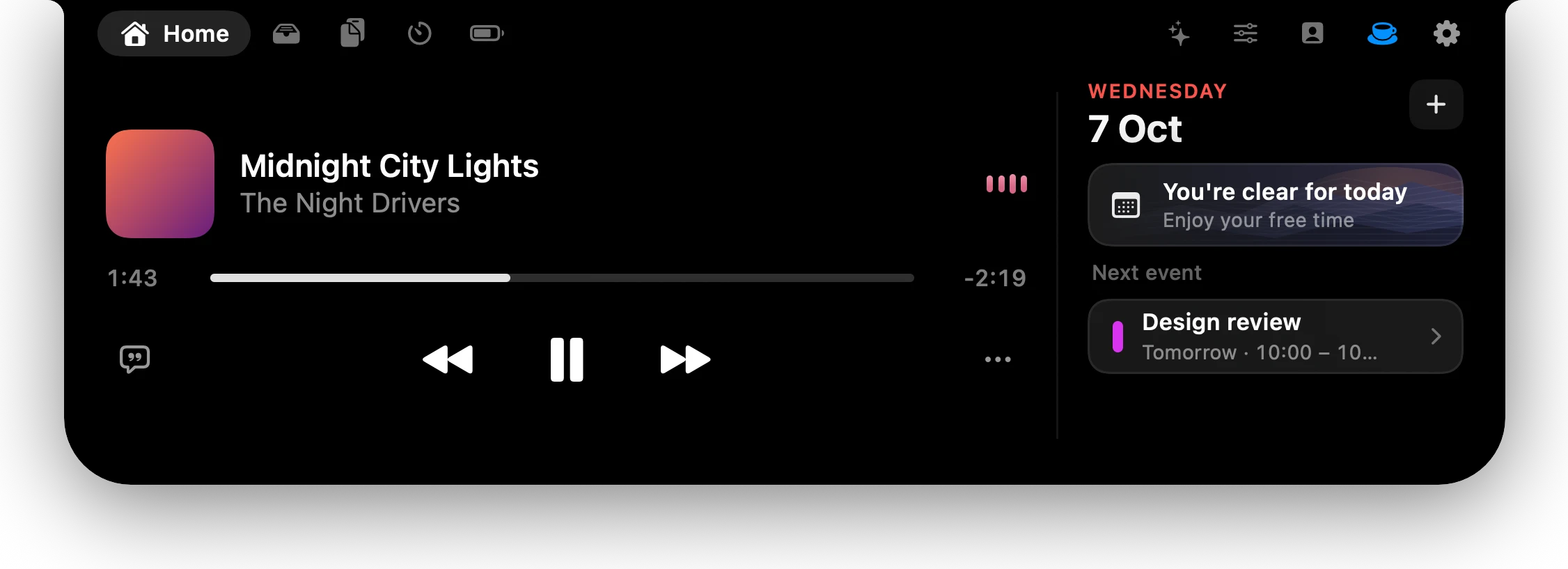
Halo has a Keep awake tile in its Controls tab: tap the cup to keep the screen on, or pick 30m, 1h, 2h or ∞. While it's on, a cup shows beside the notch, so you don't forget it. Under the hood it's the same thing caffeinate does with -d: an assertion that stops the display from sleeping, released when the time runs out or you turn it off.
Scripts and Shortcuts can switch it too, with a link:
open "halo://awake?minutes=60"
open "halo://awake/off"
Which one to pick
- One long command:
caffeinate -iin front of it. - Always on while plugged in: the Lock Screen and Battery settings.
- Now and then, without Terminal: Halo's Keep awake tile, or
caffeinate -d -twith the seconds you need.
Questions
How do I keep my Mac awake without changing settings?
Run caffeinate in Terminal. caffeinate -d keeps the display on until you press Control-C, caffeinate -d -t 3600 does it for an hour, and caffeinate -i followed by a command keeps the Mac awake until that command finishes.
What is the difference between caffeinate -d and -i?
-d stops the display from sleeping. -i stops the Mac from idle sleep but lets the display turn off, which is what you want for downloads and builds.
Why won't my Mac go to sleep?
Run pmset -g assertions in Terminal. It lists every app and process preventing sleep, such as caffeinate, a browser playing video, or coreaudiod while any sound plays.
Does caffeinate work with the lid closed?
No. Closing a MacBook's lid makes it sleep, unless it's in closed-display mode: plugged into power with an external display and a keyboard or mouse connected.
Is it bad to keep a Mac awake?
Not for the Mac, but it uses more power, and on battery it drains it faster. A time limit (caffeinate -t, or Halo's 30m, 1h and 2h) means you don't have to remember to turn it off.
More guides: External monitor brightness on a Mac · Show notifications in the MacBook notch · All guides

Try Halo
Keep awake, timers, music, notifications and AI agents, in your Mac's notch. $9.99 one-time, no subscription.
Buy Halo