Push to talk on a Mac: every app's hold-to-talk key, and the one for typing
Push to talk means two things on a Mac. In a call, you stay muted and hold a key while you speak. For writing, you hold a key, talk, and the words are typed. macOS has neither built in, but most call apps do, each with its own key. Here are all of them, and the one catch they share.
The short answer
| App | Hold to talk | Where to turn it on | Works while you're in another app |
|---|---|---|---|
| Zoom | Hold Space | Settings › Audio › "Press and hold Space key to temporarily unmute" | No, Zoom must be in front |
| Microsoft Teams | Hold ⌥ Space | On by default in the desktop app | No, Teams must be in front |
| Google Meet | Hold Space | Meet's Settings › Audio › Push to talk | No, the Meet tab must be in front |
| Discord | A key you choose | User Settings › Voice & Video › Input Mode › Push to Talk | Yes, with Input Monitoring allowed |
| Slack huddles | No hold key | A mute toggle only (⌘ ⇧ Space) | No |
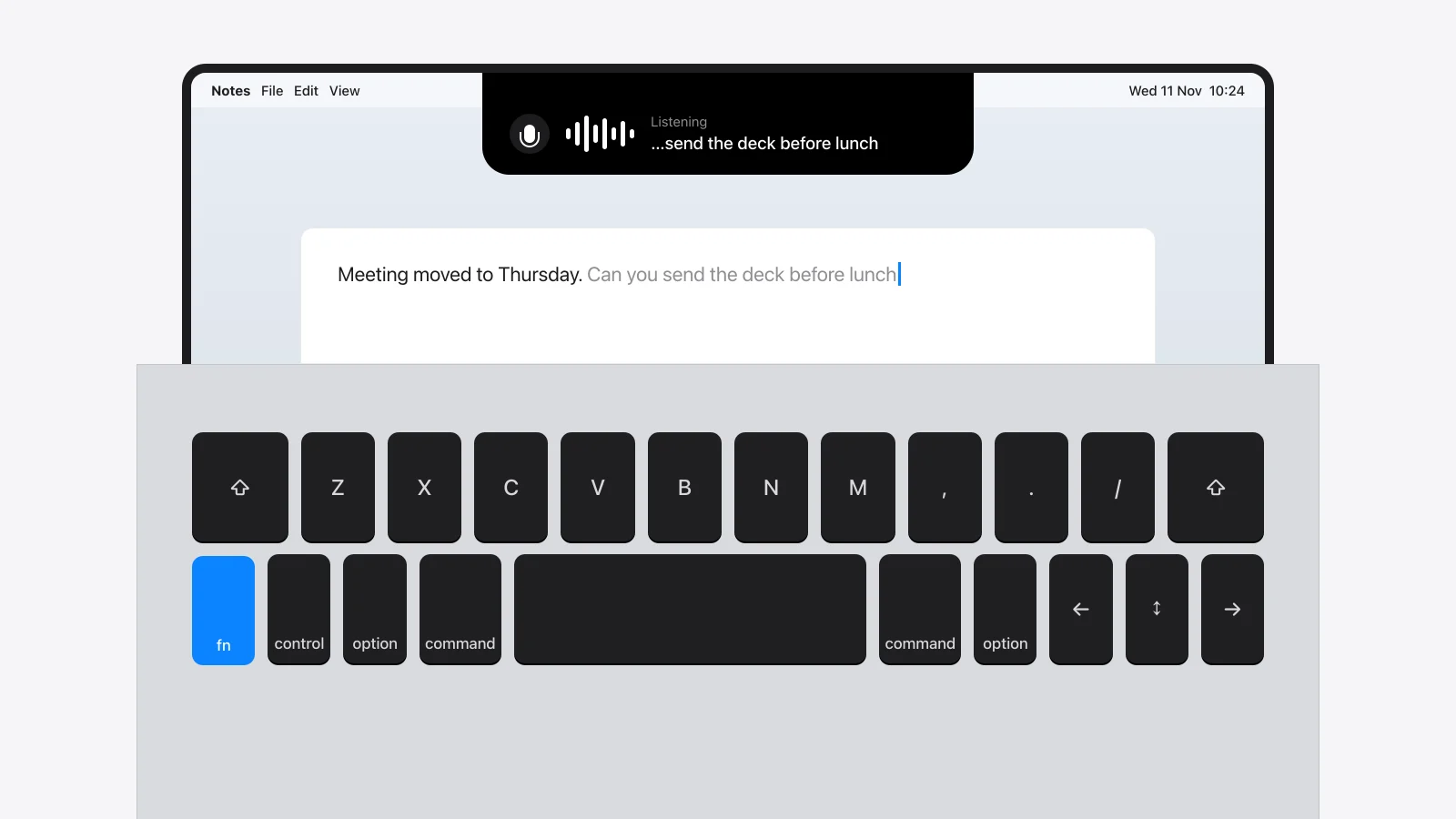
| Dictation (typing by voice) | Not in macOS | macOS Dictation is press to start, press to stop | Halo adds hold-to-dictate in every app |
Sources for each row are at the end. Checked on 11 November 2026.
Zoom: hold Space
- Open Zoom's Settings › Audio.
- Tick Press and hold Space key to temporarily unmute.
- Join muted. Hold Space while you speak and let go to mute again. Zoom shows a message while you're unmuted.
Zoom's own help page says it works "when the Zoom window is in focus". If you're taking notes in another app, Space types a space there instead.
Microsoft Teams: hold ⌥ Space
In the Teams desktop app, stay muted and hold Option + Space to talk (Ctrl + Space on Windows). Let go and you're muted again. It's on by default; the switch is under Settings › Privacy › "Keyboard shortcut to unmute". Like Zoom, the meeting window has to be in front.
Google Meet: hold Space
- In a meeting, open More options › Settings › Audio.
- Turn on Push to talk.
- Mute yourself, then hold Space to speak.
Meet runs in a browser tab, so the tab has to be the active one. In another tab or app, the key does nothing for Meet.
Discord: any key, in any app
- Open User Settings › Voice & Video and set Input Mode to Push to Talk.
- Record a shortcut. A key you never type with works best, such as Right Option or a mouse button.
- Allow Discord under System Settings › Privacy & Security › Input Monitoring, then restart Discord.
That third step is the one people miss. Without Input Monitoring, macOS only lets Discord see keys while its own window is in front, so push to talk seems to work in the app and stop working in a game. Apple's page on Input Monitoring explains the permission.
The catch they share
Three of the four only hear the key while their window is in front. That's the moment push to talk is least useful: in a real meeting you're looking at a document, a terminal or a slide, not at the call. Two ways around it:
- Keep the call window focused when you expect to speak, and use the app's normal mute shortcut otherwise.
- Mute the microphone itself, not the app. A system-level mute works whichever app is in front, because it switches off the Mac's input device.

The second one is what Halo does. When Zoom, Teams, Discord, Slack, FaceTime or a browser call is using the microphone, the notch shows the call and how long it has run, with a mute button. It mutes the Mac's input device, so it works for every call app and from whatever you're doing. To be exact about it: this is a click to mute and a click to unmute, not a held key.
Push to talk for typing: hold a key to dictate
The other meaning of push to talk is dictation: hold a key, say a sentence, let go, and it's typed. macOS's own Dictation doesn't work this way. You press a shortcut to start and again to stop, which is fine for a paragraph and awkward for a one-line reply.

Halo adds the held key:
- Open Halo's Settings, go to Dictation and turn it on.
- Pick the key: Hold Fn, Hold Right ⌥ or Hold Right ⌘.
- Pick the engine: On this Mac (Apple), which is free and shows words while you speak, or Groq (Whisper) with your own key, for about 99 languages.
- Hold the key in any app and talk. The words land where the cursor is, in a chat, an email or a terminal.
It suits short bursts: a reply in Slack, a commit message, a prompt for a coding agent. The longer walk-through, with both engines compared, is in How to dictate into any app on a Mac. Droppy dictates on the Mac as well: Halo vs Droppy, feature by feature.
Which one you need
- You talk now and then in Zoom, Teams or Meet: the built-in hold key is enough. Keep the call in front.
- You game or co-work on Discord: Push to Talk mode with Input Monitoring allowed.
- You work in other apps during calls: a system-level mute you can reach from anywhere.
- You want to talk instead of type: hold-to-dictate.
Sources
- Zoom Support: "Using push-to-talk" (the Space key setting, and that the Zoom window must be in focus).
- Microsoft Support: "Mute and unmute your mic in Microsoft Teams" (hold Ctrl + Spacebar on Windows, Option + Spacebar on Mac).
- Google Meet Help: keyboard shortcuts and the Push to talk audio setting.
- Apple Support: "Control access to input monitoring on Mac".
- Slack Help: "Slack keyboard shortcuts" (a huddle mute toggle, no hold key listed).
- Halo's call and dictation settings, as shipped in Halo 3.0.
Questions
Does macOS have push to talk?
Not system-wide. macOS has no hold-to-talk key for the microphone, and its Dictation starts and stops with a shortcut. Call apps add their own: Zoom and Google Meet use Space, Microsoft Teams uses Option + Space, and Discord lets you pick a key.
How do I turn on push to talk in Zoom on a Mac?
Open Zoom's Settings, go to Audio and tick "Press and hold Space key to temporarily unmute". Then stay muted and hold Space while you speak. The Zoom window has to be in front.
What is the push to talk shortcut in Microsoft Teams on Mac?
Hold Option + Space while muted in the Teams desktop app. Let go to mute again. On Windows it's Ctrl + Space.
Why does Discord push to talk only work when Discord is open on my Mac?
macOS only lets an app see keys in other apps if it has the Input Monitoring permission. Allow Discord under System Settings, Privacy & Security, Input Monitoring, then restart Discord.
Can I use push to talk while another app is in front?
In Discord, yes, once Input Monitoring is allowed. Zoom, Teams and Google Meet only respond while their own window or tab is in front. A system-level microphone mute, like the one Halo shows in the notch during a call, works from any app.
Is there push to talk dictation on a Mac?
Not built in. Halo adds it: hold Fn, Right Option or Right Command, talk, and the words are typed where the cursor is when you let go.
More guides: Dictate into any app · Fix dictation that stopped working · Show notifications in the MacBook notch · Check AirPods battery on a Mac · All guides
Try Halo
Hold a key to dictate in any app, and mute a call from the notch. Plus notifications, music and your AI agents. $9.99 one-time, no subscription.
Buy Halo